How to Use CV Maker Pro (Step-by-Step)
Master every feature of CV Maker Pro. Learn how to fill sections, switch themes, customize your layout, and export job-ready PDF & Word resumes in under 5 minutes.
CV Builder Navigation Controls
A quick overview of key buttons available in the CV Builder topbar.
| Button / Control | Function | How to Use |
|---|---|---|
| Theme Selector | Switches visual design template instantly. | Click dropdown & choose Classic, Modern, Professional, or Creative. |
| Sample Data | Fills editor with pre-made professional resume example. | Click button anytime to test templates with pre-filled content. |
| Reset | Clears all form fields to start a clean new resume. | Click button to clear data and start fresh from scratch. |
| Export Word | Downloads your CV as an editable Word document (.docx). | Click to save DOCX file to edit in MS Word or Google Docs. |
| Export PDF | Generates a crisp, high-resolution vector PDF resume. | Click to export ready-to-send PDF for job applications. |
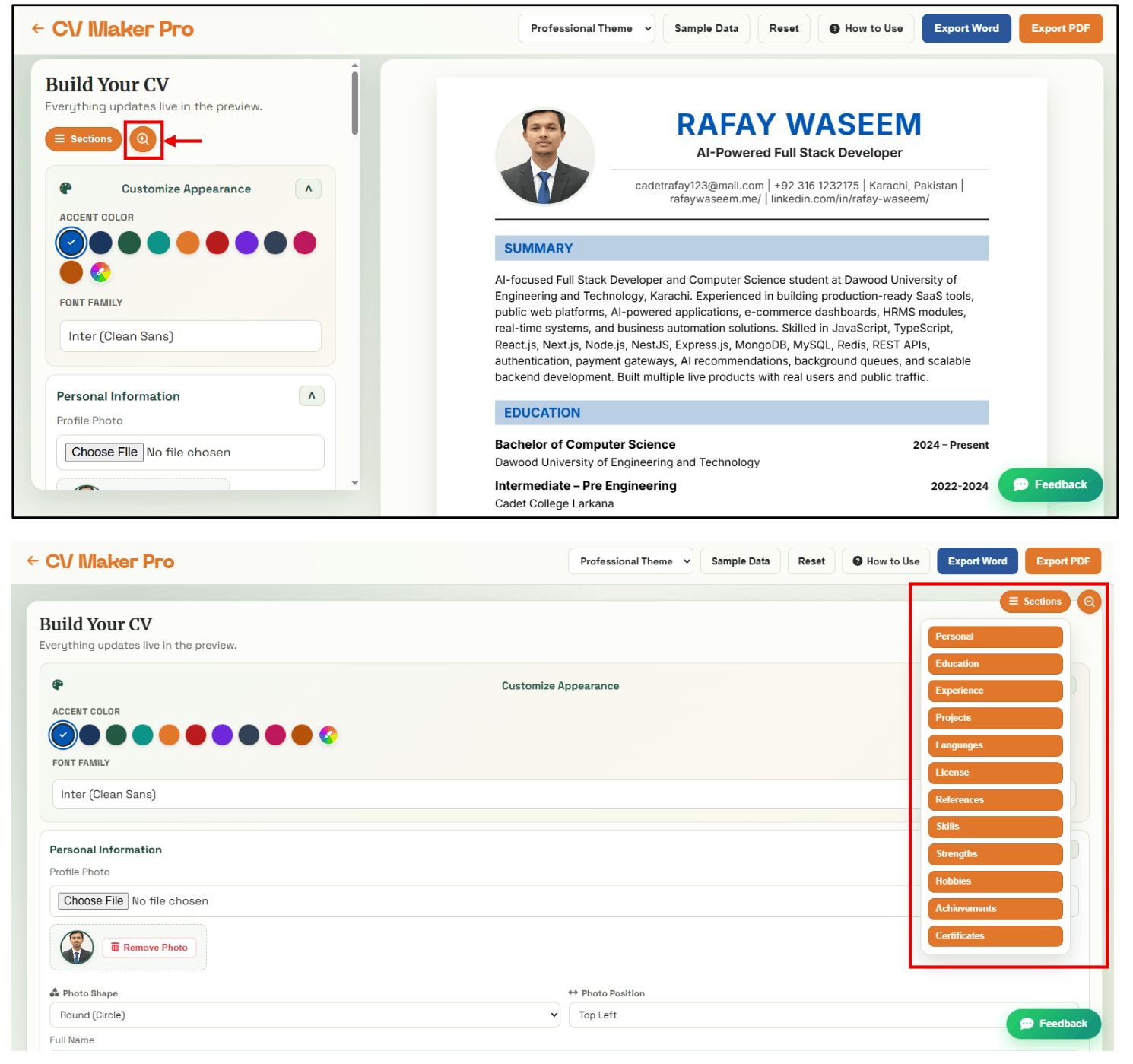
| Sections Menu | Jumps directly to any specific section in the editor. | Click 'Sections' button and pick Personal, Education, Skills, etc. |
| Zoom Mode | Expands form editor into full-screen focus mode. | Click zoom icon for distraction-free typing without preview split. |
5 Easy Steps to Build Your Professional CV
Follow these simple steps for the best experience using CV Maker Pro.
Open the Builder & Choose Quick Start Option
Click on "Create CV" or "CV Builder" from any page to open the interactive editor. You have two options to get started:
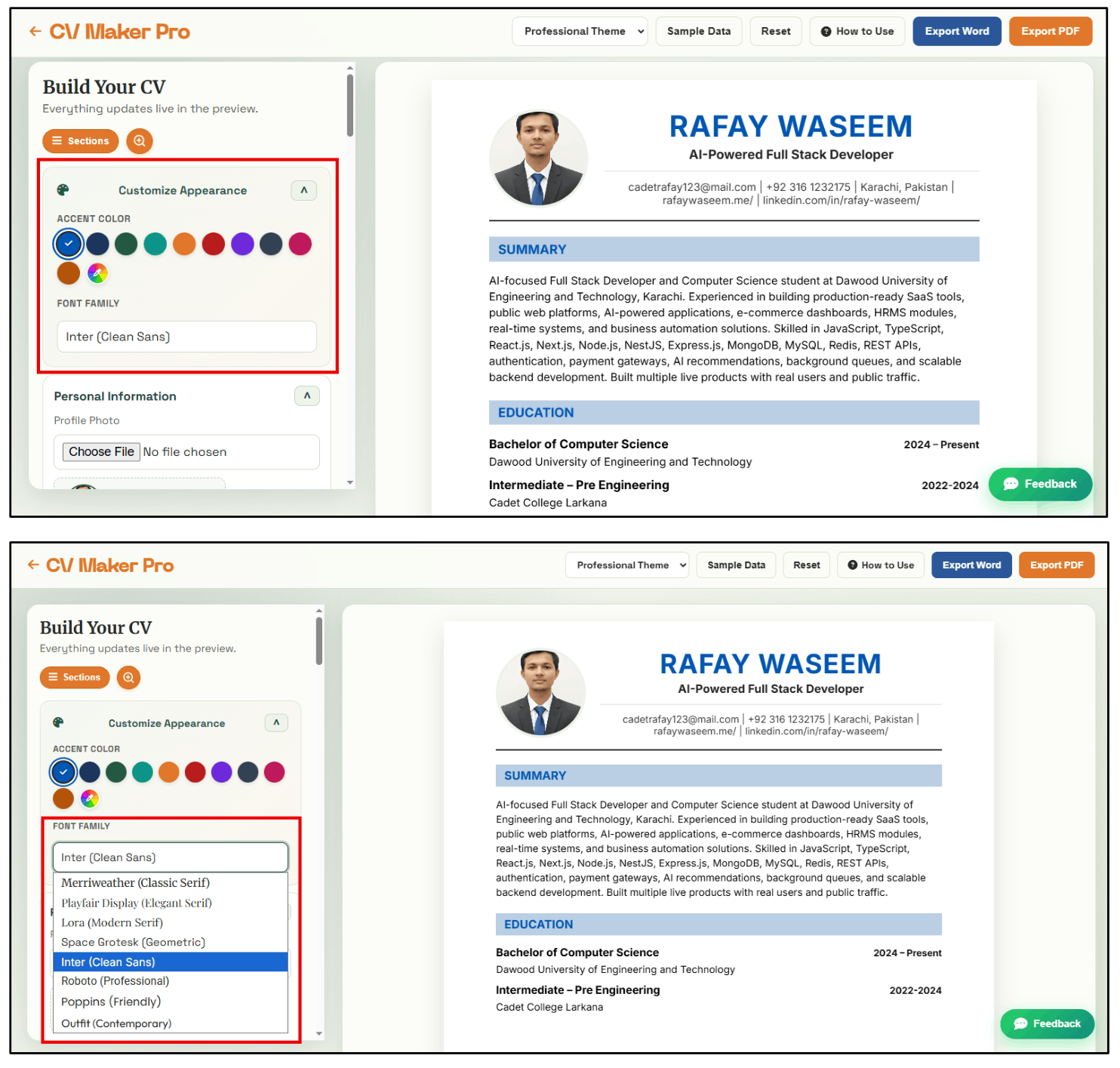
Fill Out Resume Information & Customize Appearance
Use the editor form on the left side to enter your resume information. As you type, the Live Preview panel on the right updates instantly in real-time!
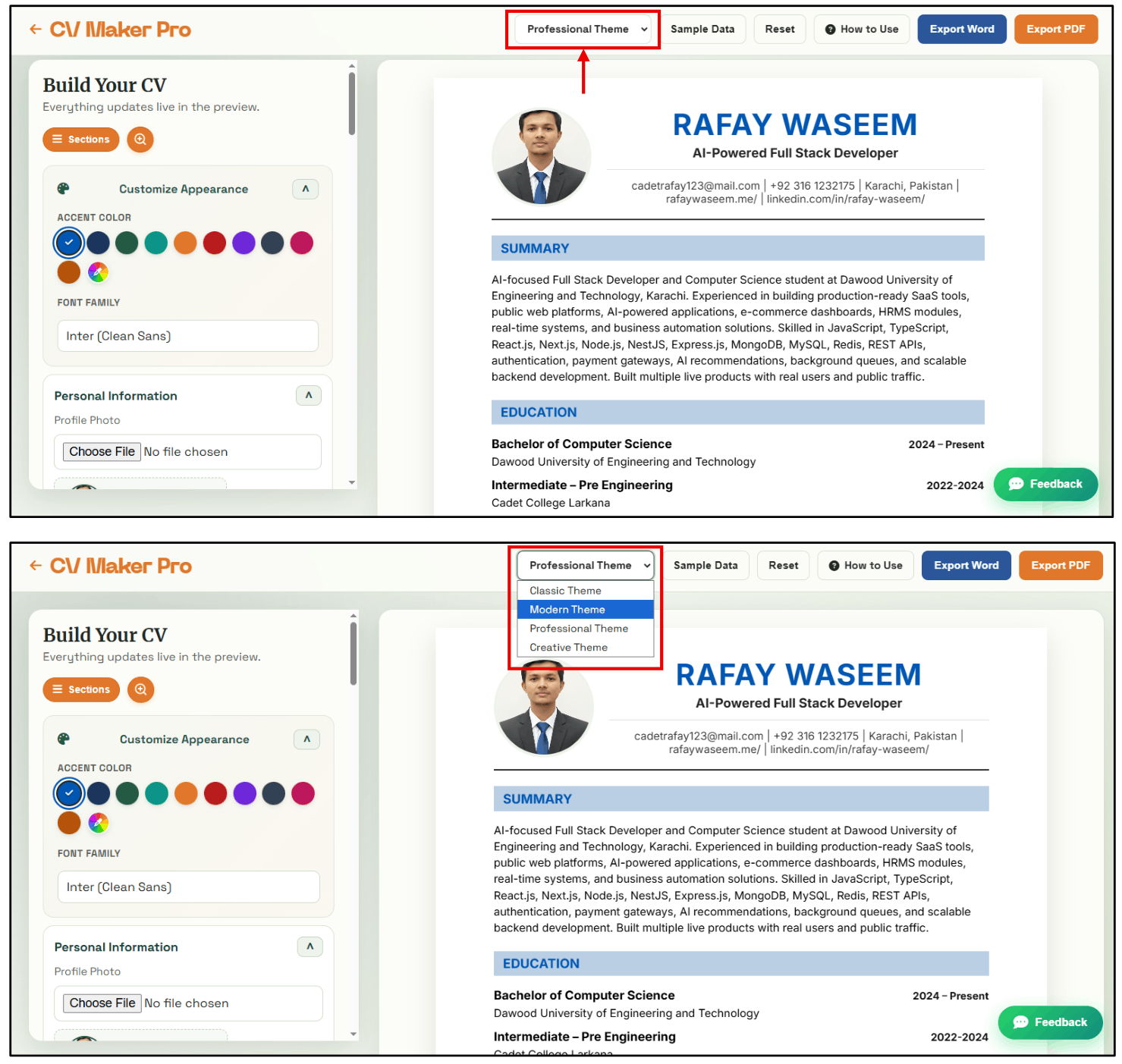
Choose & Switch Designer Templates
Select your desired visual style from the topbar theme dropdown menu. You can switch themes at any time during editing without losing your entered data!
Use Navigation Shortcuts & Focus Zoom Mode
Effortlessly navigate large resume documents using built-in builder controls:
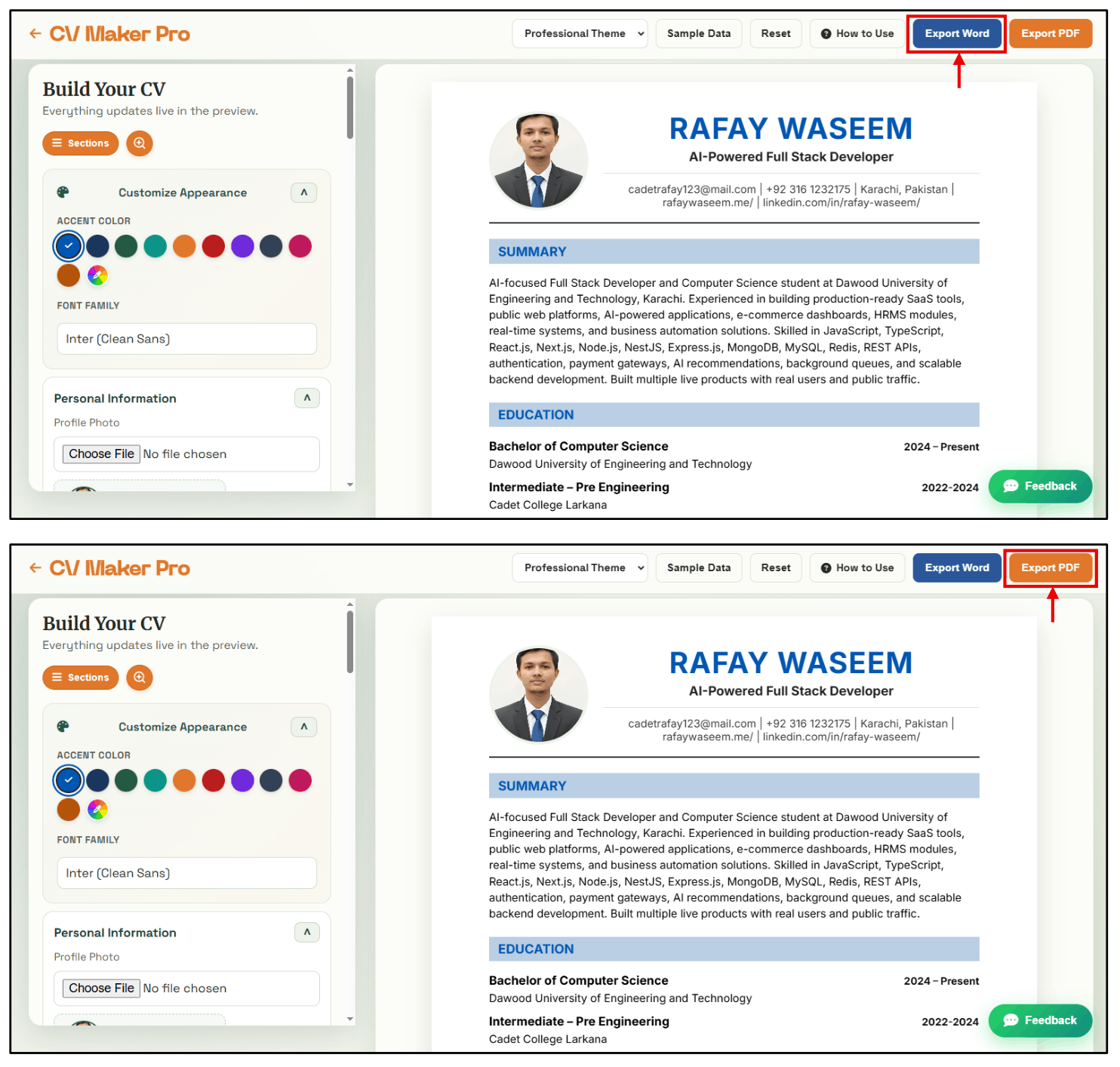
Export Your Finished Resume to PDF or Word
Once you are happy with your resume preview, click either export button in the topbar:
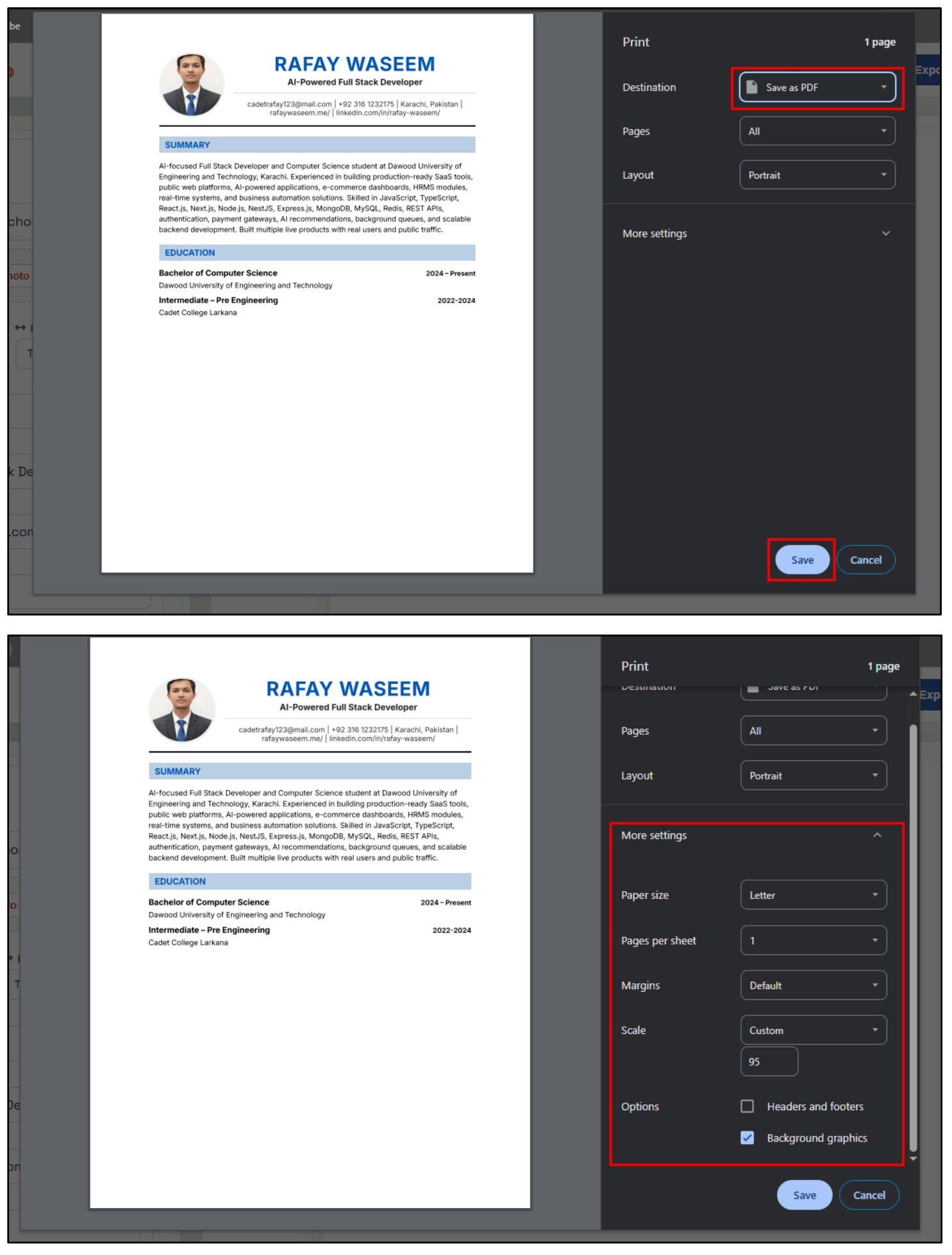
Optimizing Browser Print & PDF Save Settings:
For the cleanest PDF output, ensure your browser print settings match the following parameters:
Pro Tips for an ATS-Winning Resume
Follow these guidelines to pass Applicant Tracking Systems and impress hiring managers.
Use Action Verbs
Start bullet points with strong action verbs like Developed, Led, Managed, Engineered, Designed, Optimized.
Quantify Achievements
Include numbers and metrics where possible (e.g. "Increased revenue by 35%" or "Managed a team of 10").
Keep It Concise
Aim for 1 to 2 pages depending on your years of experience. Use clear, readable paragraphs and bullet lists.
Total Privacy
Your resume data is stored locally in your web browser. No cloud server ever sees your private contact information.
Choose a Template That Fits Your Role
Click any template below to open it instantly in the CV Builder.
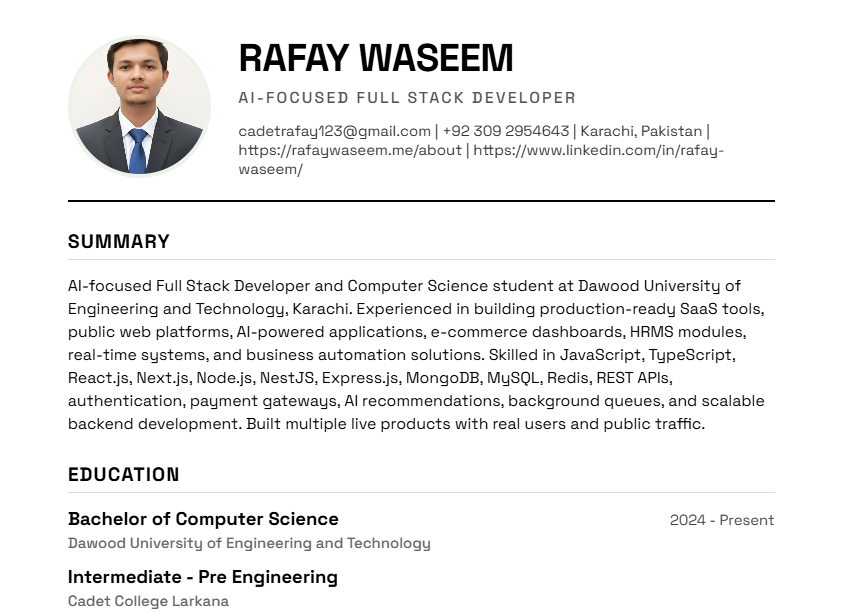
Classic Theme
Traditional, clean, and ideal for corporate & executive roles.
Use Classic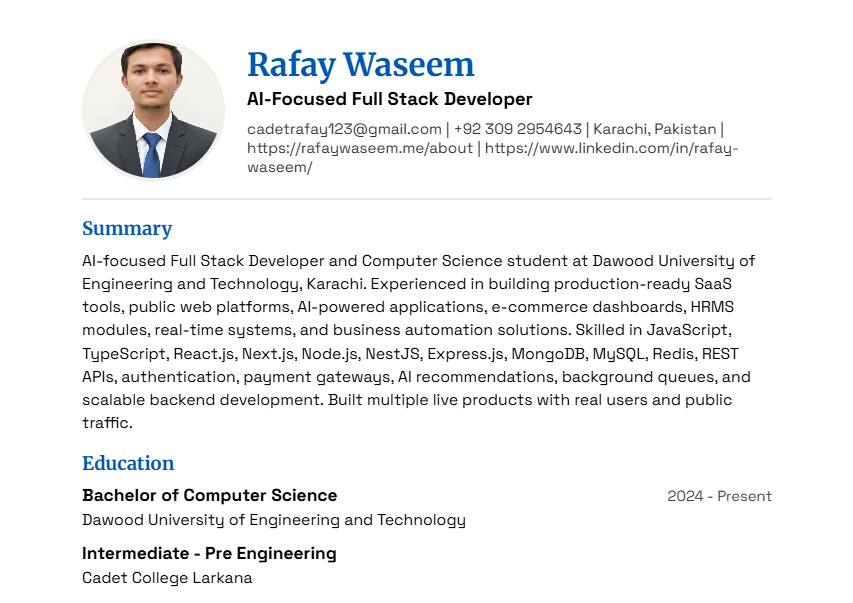
Modern Theme
Sleek, contemporary layout perfect for tech & engineering.
Use Modern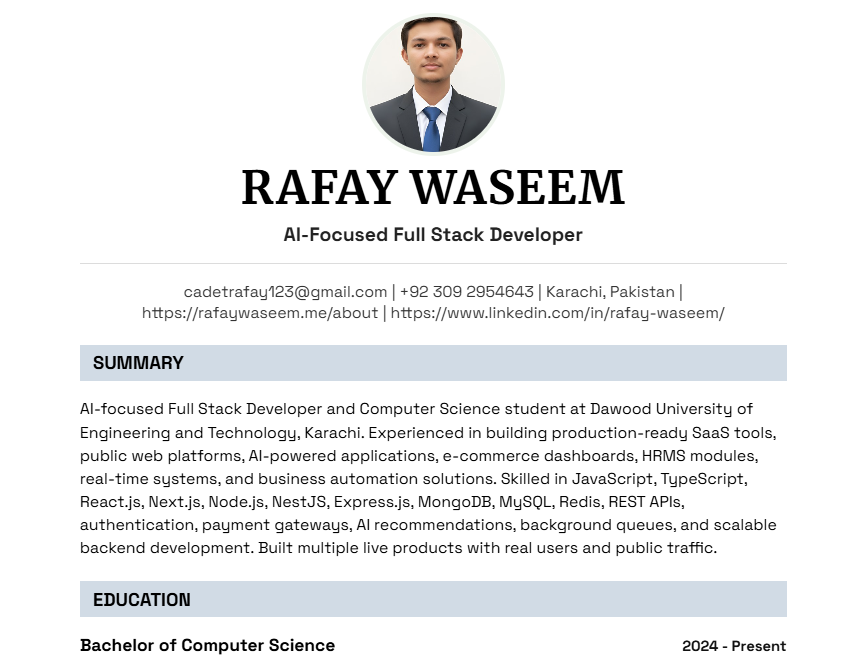
Professional Theme
Structured & authoritative style for finance, law & medical.
Use Professional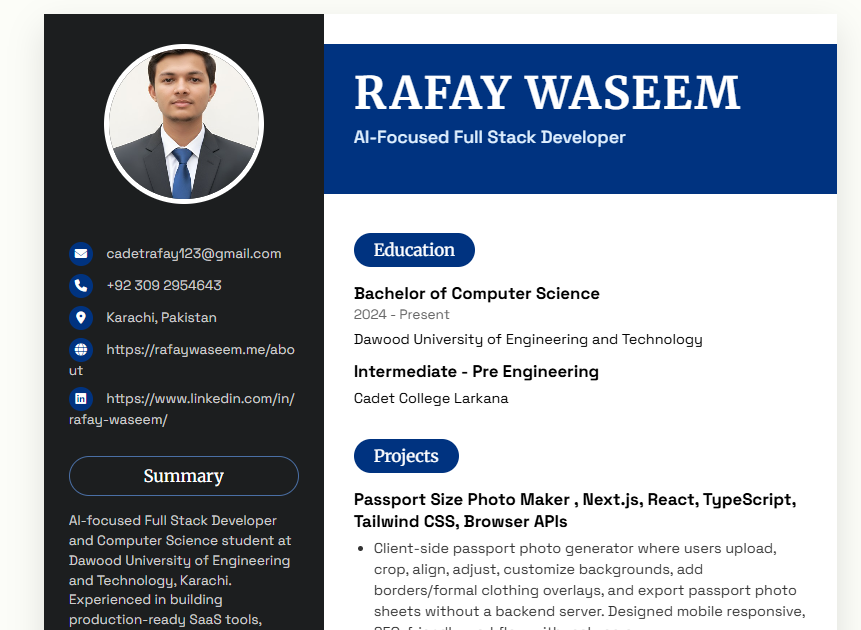
Creative Theme
Bold two-column design for designers, marketers & artists.
Use CreativeFrequently Asked Questions
Have questions about using the software? Find quick answers here.
Yes! Your data is automatically saved in your browser's local storage. When you return to CV Maker Pro on the same browser, your progress will be restored.
Yes, completely free! No account creation, no subscriptions, and no paywalls to export your PDF or Word document.
Absolutely! You can switch between Classic, Modern, Professional, and Creative templates at any time. Your content stays intact.
Click the "Reset" button in the builder topbar. This will clear all form fields so you can start a new CV from scratch.